Various Features
Display Crop Stages
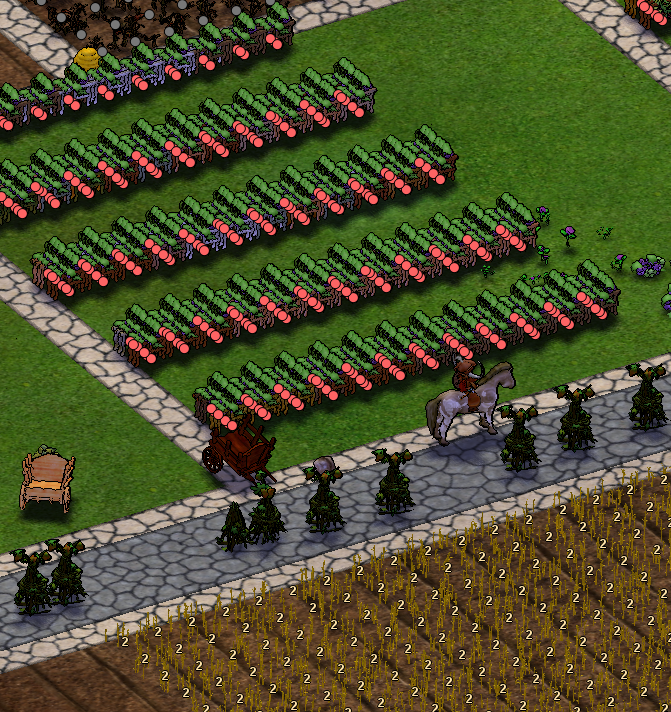
- Default keybinding:
Ctrl + P. - Gray circle = dead crop
- Red circle = ready for harvest
- Number = growth stage
Summon and mount a horse
- Default keybinding:
Ctrl + Q. - Selects the nearest adult horse in range, whistles it over, waits for it to approach, and mounts it.
Quick Logout
- The Log out keybinding terminates the current game connection immediately instead of performing a normal server logout.
- It is unbound by default and can be configured in
Options->Keybindings.
Quick Action
- Default keybinding:
Q. - Right-clicks the nearest eligible object within 20 tiles.
- Works with objects enabled in the Interaction settings, visible minimap icons, supported small creatures, and optionally herbs.
- Configure it in
Options->Interaction.
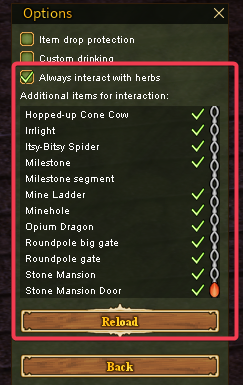
- Advanced users can add more object types in
replica-client/config/interact.json.
Item drop protection
- Can be enabled via "Options" -> "Interaction" -> "Item drop protection"
- You can only drop the item from the cursor while pressing
Controlkey.
Drink
- Default keybinding: backquote (
`). - Drinks from an available source to restore stamina.
Toggle Grid
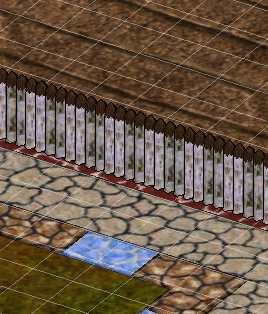
- Default keybinding:
Ctrl + G.
Toggle Objects Hiding
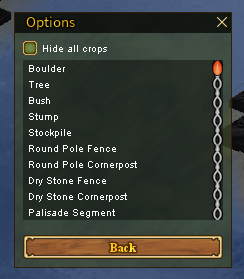
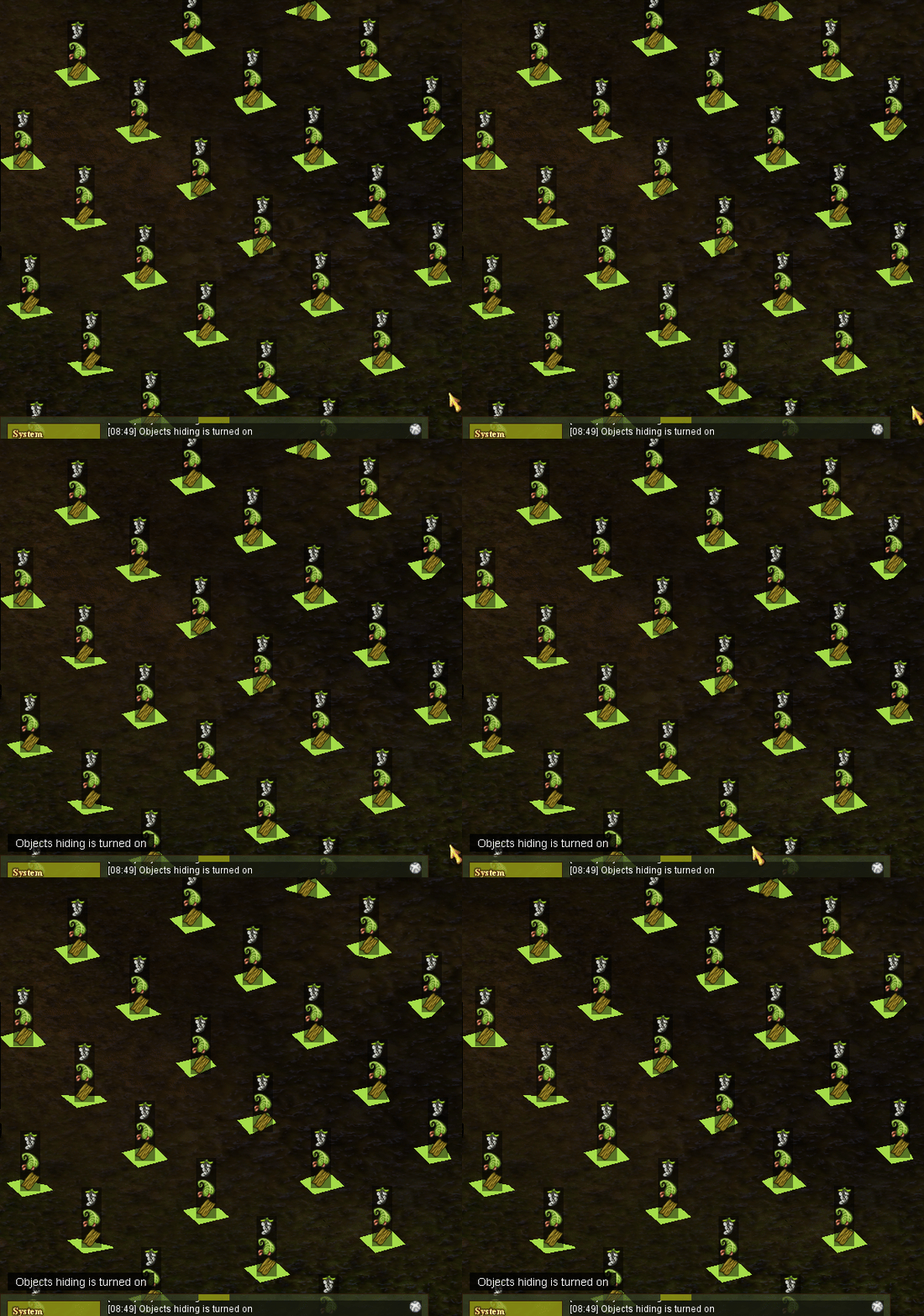
- Default keybinding:
Ctrl + H. - Replaces configured objects with their hitbox overlays.
- The specific objects to hide can be configured via
Options->Objects hiding settings. - The color of the overlay can be configured via "Options" -> "Color settings".
Quick Action Search
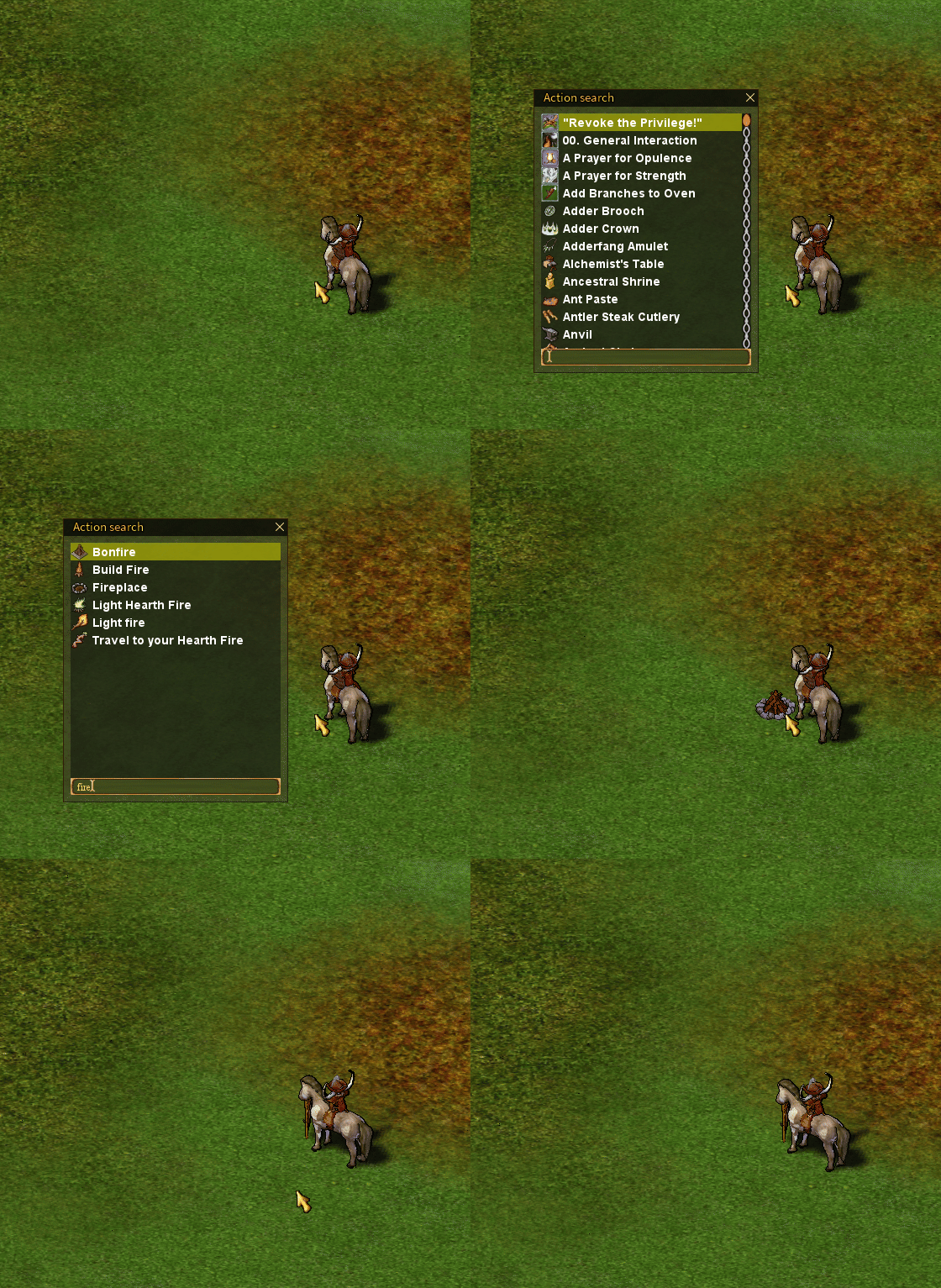
- Default keybinding:
Ctrl + Z. - Opens a filterable window containing builds, crafts, and actions from the menu grid.
Night vision
- Default keybinding:
Ctrl + N. - Removes the darkness effect completely.
- Can become extra bright via "Options" -> "Video settings" -> "Extra bright night vision".
Auto drop items
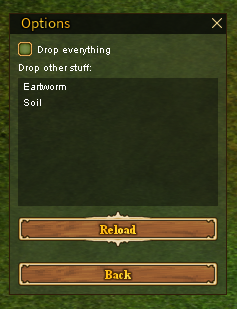
- Configured via
Options->Automation settings. - Automatically drops selected items as they enter your inventory.
- Drop everything drops every new item.
- Advanced users can change the available item list in
replica-client/config/drop.list.json.
Camera Settings
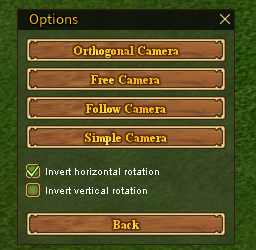
- Configured via "Options" -> "Camera settings"
- Several different cameras, try out yourself and find the best one for you.
Color Settings
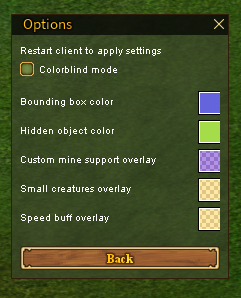
- Configured via "Options" -> "Color settings"
- Provides the ability to change the colors of the several features.
Autokin
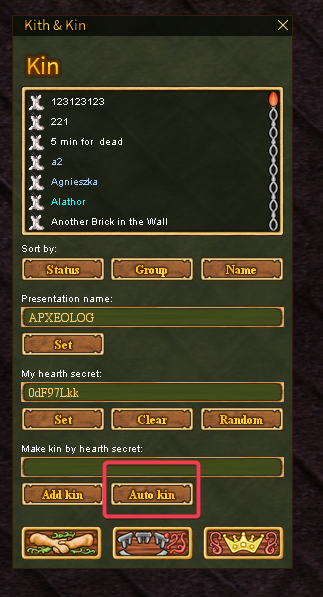
- Accessed as Kin File from the Buddy window.
- Reads the
kins.txtfile from the client folder (<launcher-folder>/replica-client/kins.txt) - Adds every hearth secret from the file.
- Put one hearth secret on each line; empty lines are ignored.
Table safe eating
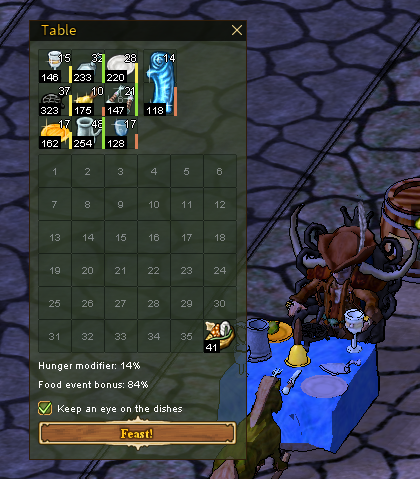
- When "Keep an eye on the dishes" is enabled, you will not be able to eat the food any symbel item's wear is too low.
Auto select menu options
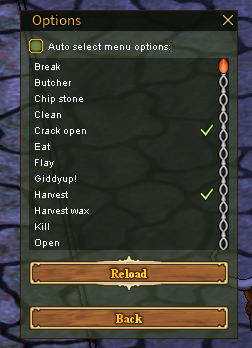
- Can be configured via "Options" -> "Menu settings"
- Will automatically select the checked menu options if enabled.
- Advanced users can add more menu choices in
replica-client/config/menus.json.
Custom notify & alarms
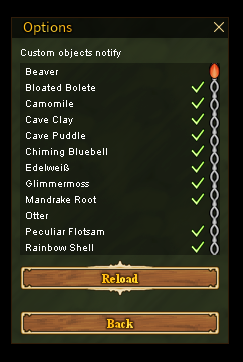
- Can be configured via "Options" -> "Notify & Alarms"
- Allows to select the entities that will play the sound when they appear in the sight.
- Advanced users can customize entries and sounds in
replica-client/config/notify.custom.json.
On-login actions
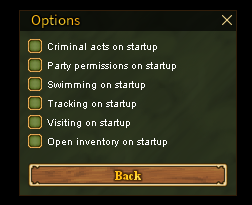
- Can be configured via "Options" -> "Startup settings"
- Allows you to automatically toggle certain things on login.
Mark object
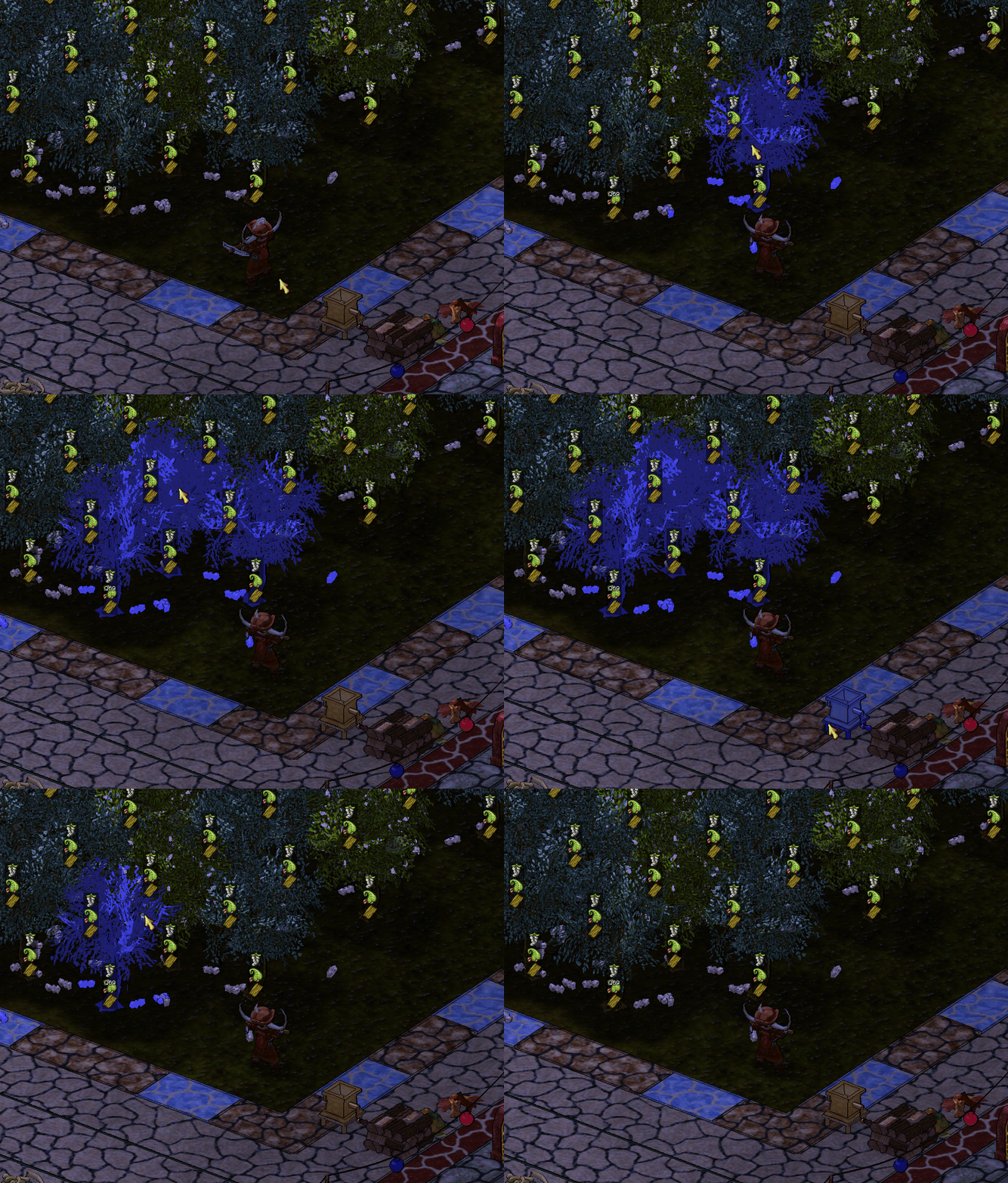
Ctrl + Alt + Left Clickto mark the object. Again to unmark.- Only visible to yourself.
- Resets after the logout.
Highlight/Ping
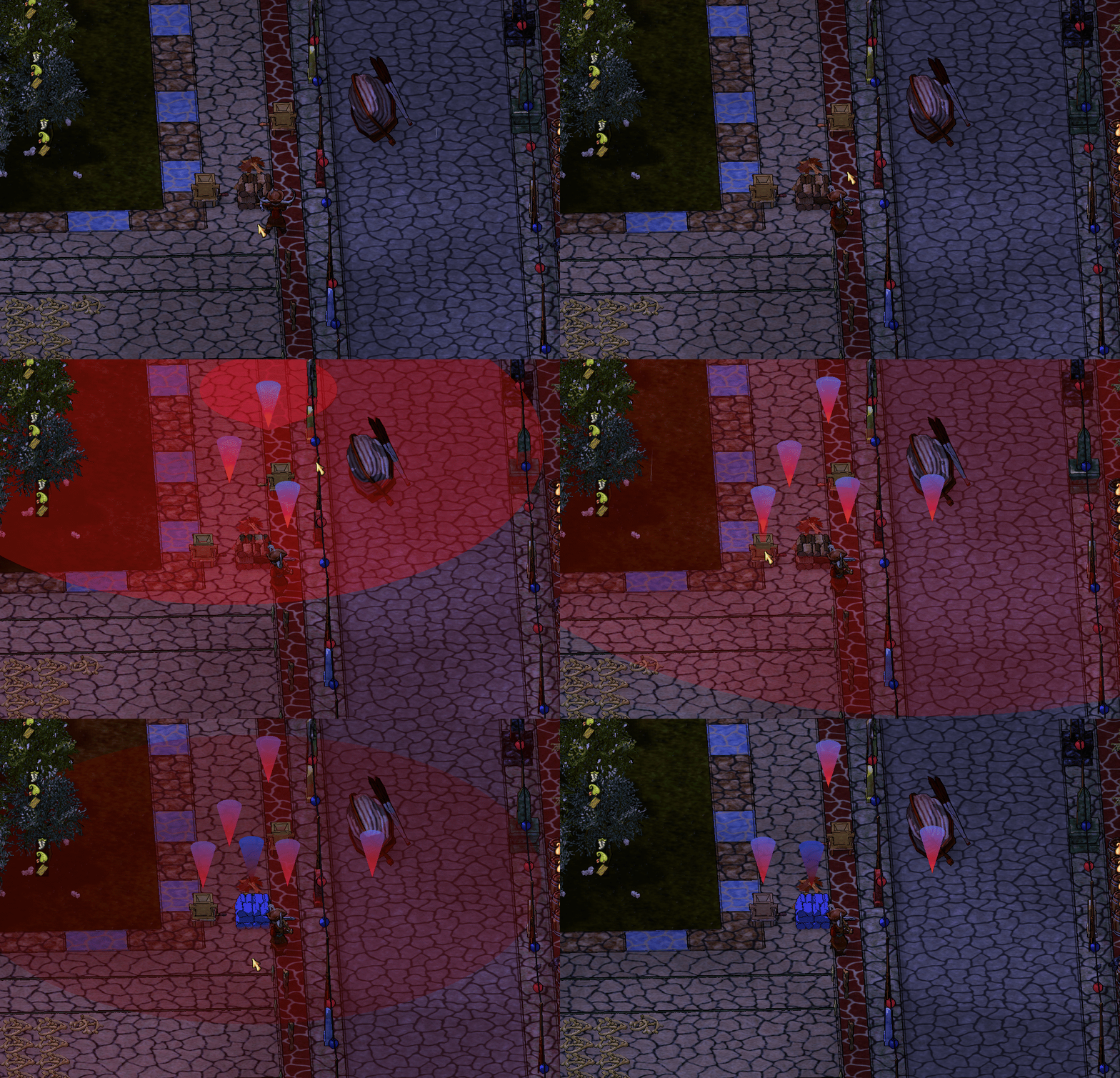
Alt + Left Clickover terrain / object to ping it to your friends.- Visible for everyone in the sight who plays from the same client.
- If you are in the party, will be visible for the party members only.
Enhanced Craft Window
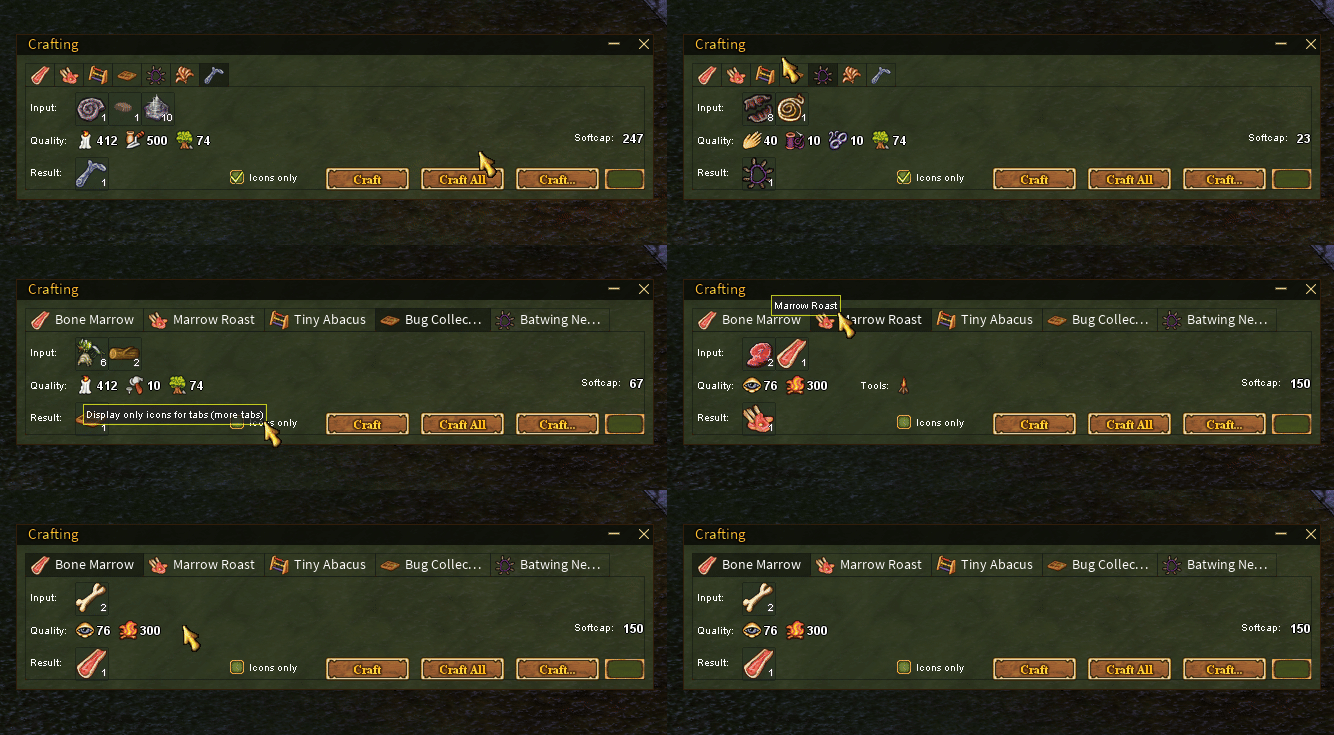
- Keep track of the last crafts in the separate tabs.
- Calculate softcap value based on your stats.
- Craft specific amount of items.
- Left-click an ingredient to open its source crafting action when the official client provides one.
- Toggle the enhanced window with
Alt + Cby default and cycle its tabs withShift + Tab. Both bindings are configurable.
World display shortcuts
- Toggle tile centering (
Shift + Zby default) makes world clicks target tile centers. - Toggle object information (
Shift + I) shows resource and state information while hovering withShift; holdCtrl + Shiftfor terrain details. - Toggle hitboxes (
Shift + B) switches object collision overlays. - Toggle farming radii (
Shift + D) shows beehive, trough, and mound-bed coverage.
Visual resource customization
Configure supported model, animation, and material changes from the client settings. See Building and Object Placement.
All defaults listed on this page can be changed in Options -> Keybindings.