Building and Object Placement
Replica adds precise placement controls, optional object snapping, and material previews.
Placement controls
The default placement mode centers the object on a tile. While placing an object:
- Hold
Shiftto use fine positioning. - Use
Ctrl + Mouse Wheelto rotate in 45-degree steps. - Use
Shift + Mouse Wheelfor fine rotation. - Configure the fine position and angle steps in
Options->Interface settingsunder Object fine-placement granularity.
All keys shown above are modifiers used during placement rather than configurable keybindings.
Object snapping

Enable Object snapping in Options -> Interface settings. Hold Ctrl while positioning an object to snap it edge-to-edge with a nearby object. Snap spacing controls the gap between the two objects.
Holding Shift keeps fine-placement mode instead. Rotating the object manually disables snapping for that placement.
Variable materials

Open Options -> Variable Materials to replace the visible wood, metal, or cloth used by supported objects. The page provides:
- A list of supported objects, including containers, vehicles, trellises, herbalist tables, compost bins, and palisade parts.
- Separate selectors for each configurable material slot.
- A 3D preview of the selected combination.
- A per-object reset button.
These choices change only what you see. They do not change the object's real materials or properties. The placement preview uses your selected materials as well.
Resource overrides
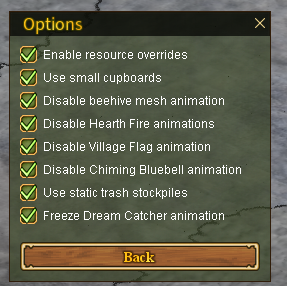
Open Options -> Resource Overrides to control Replica's supported model and animation replacements. The master switch restores official resources without requiring manual file replacement.
The current options include:
- Small cupboards.
- Animation suppression for beehives, Hearth Fires, Village Flags, Chiming Bluebells, trash stockpiles, and Dream Catchers.
Most animation changes appear after leaving and returning to the area. Use these settings instead of manually replacing client files.